
Inbox Zero in 2026: 7 Hidden Gmail Upgrades You're Missing
Inbox Zero in 2026: 7 Hidden Gmail Upgrades You're Not Using Yet
Picture this: It's Monday morning, and Sarah opens her laptop to find 147 unread emails glaring at her like an angry mob. Sound familiar? Email is like that friend who never stops talking—useful, but exhausting when you can't find the off switch.
Here's the thing: inbox zero in 2026 isn't about willpower or meditation apps. It's about knowing Gmail's hidden superpowers that most people completely miss. While you've been manually sorting emails like it's 2016, Google's been quietly rolling out game-changing features that could rescue hours from your daily email chaos.
Ready to transform your relationship with your inbox? Let's dive into seven Gmail upgrades that'll make you wonder how you ever survived without them.
1. Smart Compose 2.0: Your AI Writing Assistant Just Got Smarter
Remember when Gmail's Smart Compose felt like a drunk autocorrect? Those days are over. The 2026 version reads context like a mind reader and suggests entire paragraphs that actually sound like you wrote them.
Here's how to unleash it:
Enable Enhanced Smart Compose in Settings > General
Train it by accepting suggestions for 2-3 days
Watch it learn your writing patterns and favorite phrases
Pro tip: It now suggests meeting times based on your calendar and even crafts follow-up sequences. One user reported cutting email writing time by 40% after just one week.
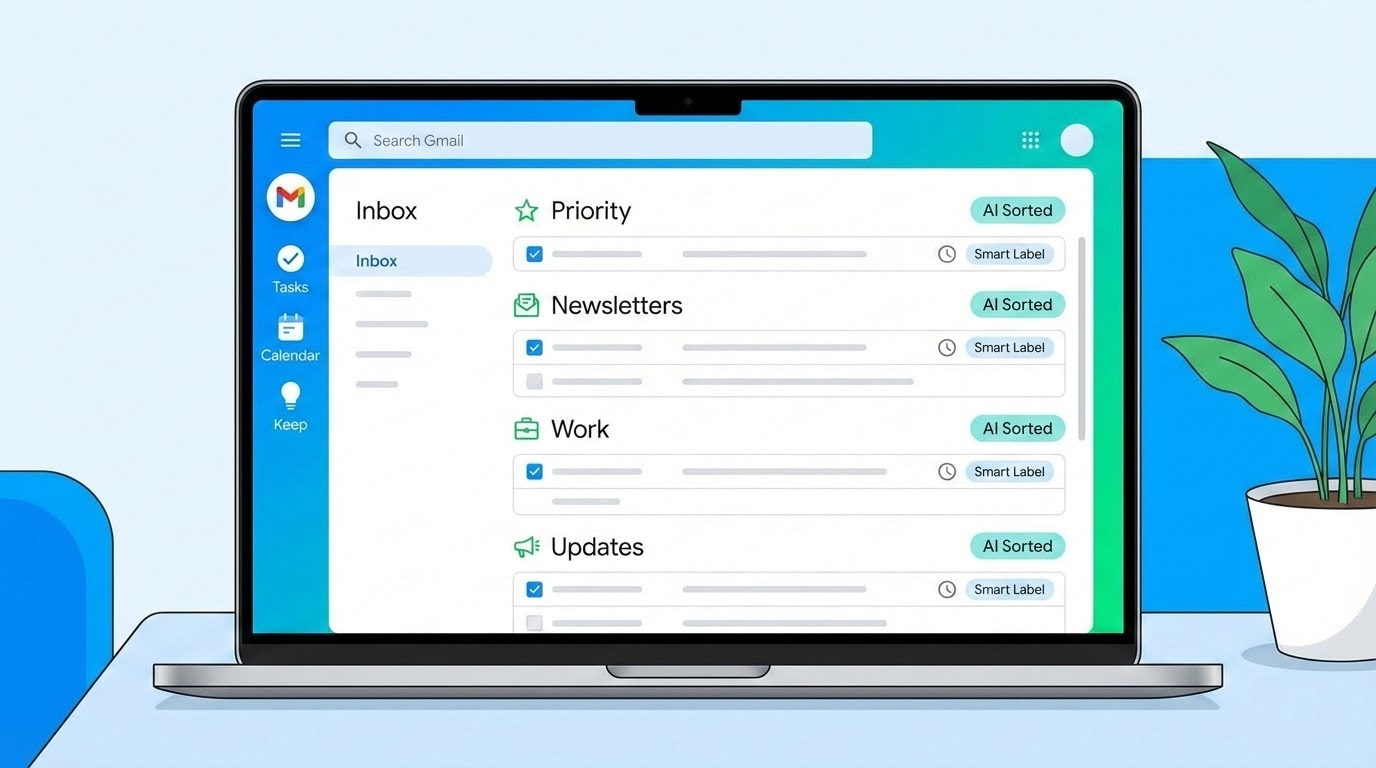
2. Priority Inbox Revolution: Context-Aware Email Sorting
Forget the old Priority Inbox—this isn't your 2020 Gmail. The new system uses machine learning to understand your specific work patterns and relationship dynamics.
The magic happens when you:
Go to Settings > Inbox and select "Priority Inbox"
Choose "Adaptive Priority" (the secret sauce)
Let it observe your email behavior for 48 hours
Watch it start surfacing exactly what matters when
This isn't just about marking emails as important—it's about Gmail learning that emails from your boss on Friday afternoons are urgent, but newsletter subscriptions can wait until Tuesday morning coffee.
3. Snooze+ with Smart Timing Suggestions
The original snooze feature was like setting an alarm clock with a hammer. Snooze+ reads your calendar, understands your work rhythms, and suggests the optimal time to resurface each email.
Here's what makes it brilliant:
It knows you're most productive at 10 AM on Tuesdays
It won't interrupt focused work blocks
It clusters related emails to resurface together
It learns when you typically handle different email types
To activate: Right-click any email, select "Snooze+", and choose "Smart Timing." Watch Gmail become your personal email strategist.
4. Bundle View: The Email Organization Game-Changer
Imagine if Gmail could automatically group related emails into neat little packages. Well, stop imagining—Bundle View does exactly that, and it's hiding in plain sight.
This feature automatically clusters:
Project-related email chains
Event planning threads
Vendor communications
Travel confirmations
Enable it through Settings > Advanced > Bundle View. Fair warning: once you see your inbox organized this way, going back feels like trying to navigate with a paper map after using GPS.
5. Swipe Actions 2.0: Gesture-Based Email Ninja Moves
On mobile, the new swipe actions aren't just delete and archive anymore. You can now create custom gesture sequences that execute multiple actions with a single swipe.
Set up power swipes like:
Swipe right: Archive + add to task list + set follow-up reminder
Swipe left: Delete + block sender + report as spam
Double-tap: Forward to assistant + mark as important + snooze for 2 hours
Access this through Gmail mobile app > Settings > Swipe Actions > Custom Sequences. It's like having keyboard shortcuts for your thumbs.
6. AI Summary Bullets: Your Personal Email Cliff Notes
Long email chains got you scrolling for days? Gmail's new AI Summary Bullets feature reads entire conversations and serves up the key points in digestible chunks.
When you open any email thread with 4+ messages, look for the "Summarize" button at the top. Click it, and watch Gmail extract:
Action items and deadlines
Key decisions made
Outstanding questions
Next steps identified
It's like having a personal assistant who actually reads everything and gives you the highlights. One beta tester said it turned a 47-message thread into a 30-second read.
7. Predictive Search with Natural Language
Searching for emails used to feel like archaeology. The new predictive search understands phrases like "that contract email from last Tuesday" or "the meeting invite with the budget spreadsheet attached."
Here's what makes it magical:
It understands context and relationships
It learns your language patterns
It surfaces related emails you didn't even search for
It works with voice commands on mobile
Just start typing naturally in the search bar. No more cryptic operators or perfect keyword matching required.
Your Inbox Zero Action Plan
These Gmail upgrades aren't just features—they're your ticket to email sanity. But here's the secret sauce: don't try to implement all seven at once. That's a recipe for overwhelm.
Start with Priority Inbox and Smart Compose this week. Add Bundle View next week. Then gradually layer in the others as they become second nature.
Think about it: What if checking email became something you actually looked forward to instead of dreaded? What projects could you tackle with those rescued hours?
The path to inbox zero in 2026 isn't about perfect email discipline—it's about letting Gmail's hidden intelligence do the heavy lifting while you focus on work that actually moves the needle.
Ready to reclaim your mornings from email chaos? Pick one upgrade from this list and set it up right now. Your future self will thank you when you're sipping coffee instead of drowning in digital overwhelm.


